 AZ TOOLS

AZ Macros
Do it once while AZ Macros records, then replay it on any selection with one click, from the library, a shelf button or a hotkey.
- Utility
- Version 0.5.2
- Early version
- Maya 2023 – 2027
- Windows
- Free
Early version, lightly tested so far. The recorder already handles menus, hotkeys, manipulators, the Channel Box and Python tools, but it has seen far fewer real scenes than the other AZ Tools. Check a new macro on a copy before you trust it with a shot, and if a step records wrong, please tell me what you did.
What it does
Repetitive Maya work is usually the same few actions on a different object. AZ Macros watches you do them once and turns them into a list of plain, editable steps that you can replay anywhere.
It records what you really do: menu items and option boxes, hotkeys, manipulator drags, Channel Box edits, shelf buttons and your own Python tools. Each action becomes one step you can read, edit, reorder or switch off before you save. The result lives in a library and can go onto the shelf, onto a hotkey or out as a self-contained Python script.
Workflow
- Open AZ Macros from the AZ Tools menu and press Record. The viewport shows REC and a step count.
- Work as usual. Select what the macro should start from first: the current selection is the input of the macro.
- Press Stop. Delete the steps you do not want, reorder them, or edit a command right in the list.
- Name the macro and press Save to Library.
- Later: select something, pick the macro in the library and press Run. The whole macro is one undo step.
- For daily use press Add to Shelf, or drag the macro with the middle mouse button onto a shelf or into the Script Editor.
The window
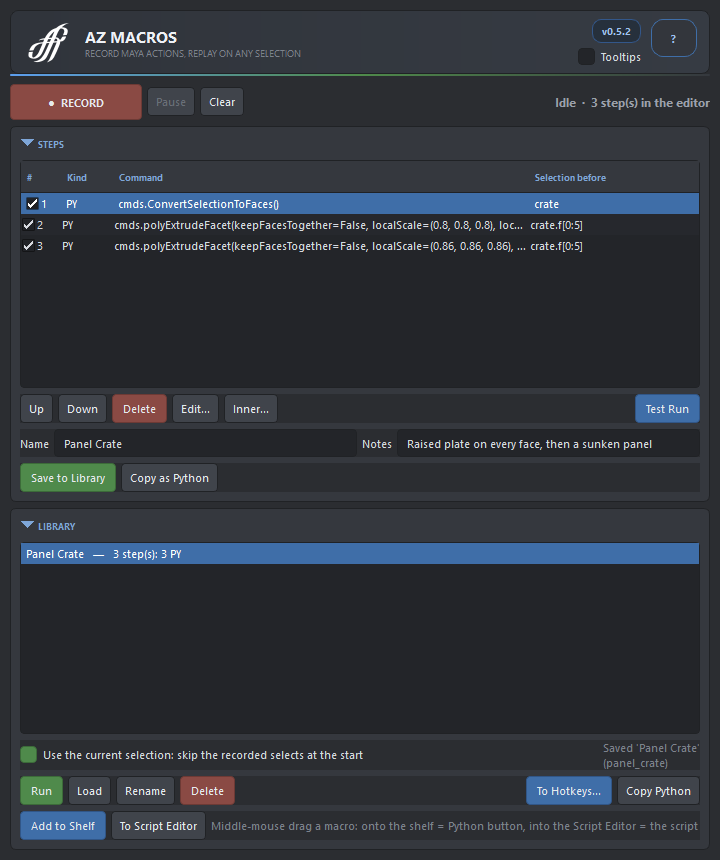
- Record
- Record / Stop, Pause to do something that must not be recorded, Clear. Recording again on a filled list asks whether to append or start over. Ctrl+Z while recording drops the last step.
- Steps
- One row per action: on/off check, kind, command and the selection before it. Up, Down, Delete, Edit..., Inner... and Test Run on the current selection.
- Save
- Name and notes, Save to Library, Copy as Python.
- Library
- Saved macros with step count and the selection they need. Run (double-click works too), Load back into the editor, Rename, Delete, Copy Python, Add to Shelf, To Script Editor; middle-mouse drag onto a shelf or into the Script Editor.
- Use the current selection
- On: the recorded selects at the start are skipped and the macro works on what is selected at playback. Off: they replay with their absolute names.
How it works
- Three kinds of steps. MEL is what the UI did, exactly as the undo queue names it (
performPolyExtrude 0,Duplicate); PY is amaya.cmdscall made from Python; STATE is a tool or mode switch such asMoveTool. - Placeholders instead of names. Objects that were selected when a step ran become
<<SEL:0>>, objects an earlier step created become<<NEW:id:0>>, and a Channel Box edit of a history node becomes<<HIST:0:polyCube:0>>. They are filled in from the scene right before each step runs. - Inner commands. A menu proc replays with the option box settings that are current at playback. Inner... swaps it for the exact command it ran, for example
performPolyMirror 0forpolyMirrorFace -cutMesh 1 ..., when the exact flags matter. - A plain library. Macros are stored as JSON in your Maya user folder. Shelf buttons call the library macro, so a later edit applies to the button as well. Copied scripts are self-contained and run without AZ Tools.
Good to know
- Brush strokes (paint, sculpt) are not commands and are not captured.
- A macro does exactly what its commands do. Some Maya commands take one object at a time (
polyExtrudeFacetis one): run the macro on each object, as in the clip above. - Untick noise before saving: a stray selection click or a camera tool switch becomes a step like any other.
- To Hotkeys... appears only where the AZ Hotkeys preset editor is installed.
Availability
AZ Macros is a free product of AZ Tools, in the Utility category: every registered account can install it from the AZ Tools Manager. It is an early version; updates arrive through the Manager like for every other tool.
Get AZ Tools Manager